
Time Card Lock Control
1. Summary
We have added a new feature that gives you better control over staff time cards. Before this release, time cards could be locked only on a weekly or every 2 weeks basis. You can now choose the number of days (1 to 5) after which a time card is locked, decide which roles may still add or edit entries on a locked time card, and allow selected user to add or edit their time card regardless of the lock frequency.
This keeps payroll hours accurate and prevents unplanned changes after hours have been reviewed, while still giving you flexibility when a correction is needed.
2. What is new
- Lock by number of days. Previously only weekly and every 2 weeks basis were available. You can now lock a time card after 1, 2, 3, 4 or 5 days, whichever suits your payroll routine.
- Role permission. Each role can be set to allow or block adding and editing entries on a locked time card (Time Card Lock, under Feature Permission).
3. How to set it up
A. Choose when a time card locks
- Open Staff Payroll Hours Setup.
- Under Do you want to lock the time card? select Yes.
- Set Lock time card frequency to Day.
- In Lock time card on, choose a number from 1 to 5.
- Click Save.
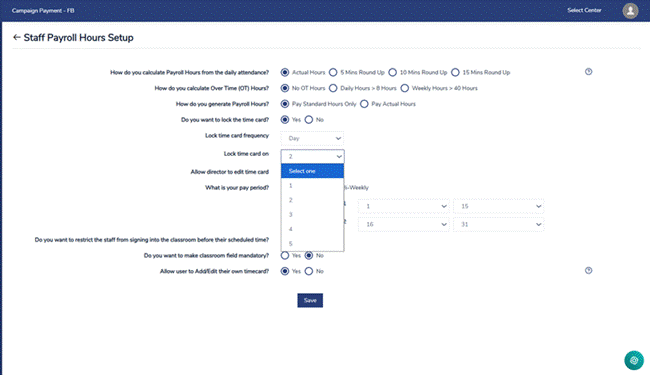
Screenshot 1: Staff Payroll Hours Setup. The Lock time card on drop-down lists 1 to 5 days.
B. Choose which roles can edit locked time cards
- Open Role Management.
- Click the Feature Permission icon next to the role you want to update.
- Scroll down to the Time Card Lock section.
- For Allow adding or editing entries on locked time cards, select Yes or No.
- Click Save.
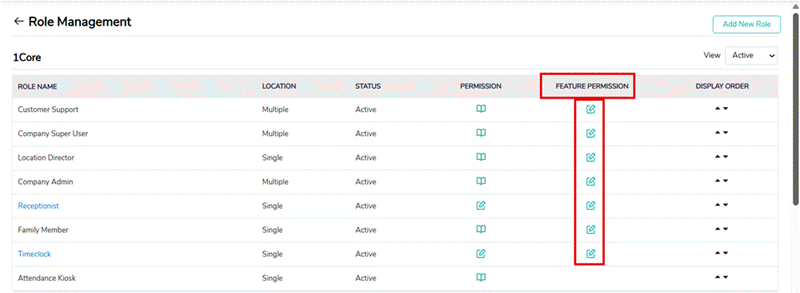
Screenshot 2: Role Management. Use the Feature Permission icon (highlighted) to open a role's feature permissions.
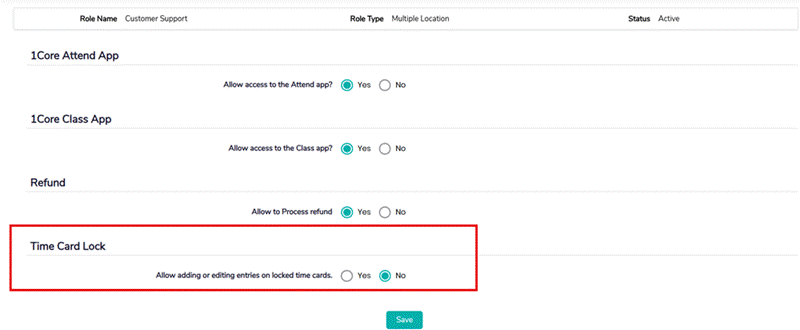
Screenshot 3: Feature Permission for a role. The Time Card Lock section (highlighted) is shown with No selected.
4. Example
Suppose Lock time card on is set to 2 days and today is Monday. The time cards for last week's Thursday and Friday can still be edited. Older time cards are locked. A role set to Yes for Time Card Lock can still add or edit entries on a locked time card, while a role set to No cannot. Staff who are allowed to add or edit their own time card can do so irrespective of the lock frequency.
5. Where the changes are reflected
Any change you make in this setup is reflected in the following areas, so everyone works from the same rules.
Area | What you will see |
Staff timecard page | Follows the lock and permission settings. |
PTO page | Follows the lock and permission settings. |
Payroll hours | Follows the lock and permission settings. |
Batch PTO | Follows the lock and permission settings. |
Payroll approval | Follows the lock and permission settings. |
Staff portal (other centers) | The system follows the lock provisions based on the configured frequency. Once a staff member's timecard is locked, they cannot make any changes to it, as there is no feature permission available to modify a locked timecard. |
Note: The lock time period will not consider weekends (Saturday and Sunday) when calculating the allowed modification period. Only business days will be counted toward the lock duration.
Example:
- Lock Time Card Frequency: Daily
- Lock Time Card On: 1 Day
Users can modify timecards for October 9, 2026 (Friday) until the end of October 12, 2026 (Monday), as the weekend is excluded from the lock period calculation.
Timecards dated October 8, 2026, and earlier will remain locked and cannot be modified.
Scenario Breakdown:
- October 9, 2026 (Friday) → Timecard date
- October 10-11, 2026 (Saturday-Sunday) → Not considered in lock period
- October 12, 2026 (Monday) → Last day to modify the October 9 timecard
- October 13, 2026 (Tuesday) → October 9 timecard becomes locked
This ensures users are not impacted by weekends when making timecard corrections or updates.